Common CLI Test Reporting Issues
Test reporting failures in CLI tools can disrupt development workflows, causing delays and uncertainty about code quality. Here's a quick overview of the most common problems and how to address them:
- Missing or incomplete reports: Often caused by misconfigured output paths or file permissions.
- Confusing logs: Overly verbose logs and poor formatting make debugging tedious.
- Inconsistent results: Flaky tests or timing issues, like network delays, lead to unreliable outcomes.
- Dashboard integration problems: Limited API support or incompatible formats hinder centralized reporting.
- Slow report generation: Large test suites or resource-heavy logging can delay feedback.
Key Solutions:
- Correct CLI settings: Use proper flags, output paths, and logging configurations.
- Consistent environments: Match local and CI setups to avoid discrepancies.
- Automate workflows: Integrate testing and reporting into CI/CD pipelines.
- Update tools regularly: Avoid bugs by using the latest versions of CLI tools.
- Use reliable platforms: Tools like Maestro simplify reporting with YAML-based flows, built-in flakiness handling, and unified cross-platform support.
By addressing these issues, teams can improve testing reliability, reduce troubleshooting time, and maintain productivity.
Common CLI Test Reporting Issues
CLI test reporting can sometimes hit roadblocks that disrupt the testing process. These issues often arise from misconfigurations, inconsistent environments, or limitations within the testing framework itself. Understanding the most frequent challenges can help teams tackle them before they derail workflows. Here’s a breakdown of the typical problems impacting CLI test reporting.
Missing or Incomplete Test Reports
A frequent issue is when test reports either fail to generate entirely or only include partial data. This can happen due to permission problems or incorrect output paths. For instance, tests might run smoothly, yet the designated report directory could remain empty or end up with corrupted files because of restrictive file system permissions or misconfigured paths.
Another snag comes with format compatibility. Sometimes reports are produced in a format that downstream systems can’t process, leaving teams with unusable data despite successful test executions.
Hard-to-Read Logs and Poor Formatting
Logs generated by CLI tools can sometimes be a nightmare to sift through. Overly verbose logs often bury critical errors under a mountain of text, making debugging a slow and frustrating process. The absence of clear timestamps or consistent formatting only adds to the challenge, as it becomes tough to trace the sequence of events during a test run.
Inconsistent or Duplicate Results
Flaky UI interactions and poorly managed test reruns are common culprits behind inconsistent or duplicate results. For example, UI elements might not always appear where they’re expected, or screen taps might not register reliably. As noted in the Maestro Documentation:
Built-in tolerance to flakiness. UI elements will not always be where you expect them, screen tap will not always go through, etc. Maestro embraces the instability of mobile applications and devices and tries to counter it.
Network delays and varying load times for content further exacerbate these inconsistencies. Instead of relying on manual fixes like inserting sleep() calls, tools with built-in delay handling can automatically wait just long enough for content to load. As described in the Maestro Documentation:
Built-in tolerance to delays. No need to pepper your tests with
sleep()calls. Maestro knows that it might take time to load the content (i.e. over the network) and automatically waits for it (but no longer than required).
Poor Integration with Reporting Dashboards
Many CLI tools struggle to integrate seamlessly with reporting dashboards, making it harder for teams to centralize test data and analysis. Incompatibilities in report formats or API limitations can prevent smooth data transfer between CLI outputs and dashboards. Often, the data shared via APIs is limited to basic pass/fail statuses, leaving out valuable details like execution times or error classifications.
In addition, authentication and connectivity issues can further complicate the process of syncing data with external dashboards.
Slow Report Generation
Large test suites can overwhelm CLI reporting systems, leading to delays in report generation. When the volume of tests is high or logging is particularly heavy, system resources can become strained, slowing down the process. These delays can hinder timely feedback in CI/CD pipelines, ultimately affecting overall productivity.
Finding the Root Causes
Catching configuration mistakes early can make a world of difference when dealing with CLI test reporting failures. By pinpointing the underlying issues, you can save valuable troubleshooting time and avoid running into the same problems later. Let’s break down some common culprits behind these failures.
Wrong Output Paths and Logger Settings
One common issue is setting the test output directory incorrectly or misconfiguring logger settings. If the output path points to a non-existent location or one without the proper write permissions, the report simply won’t generate. Similarly, if critical report details are being logged to the wrong destination or if inappropriate logging levels are used, your tests might run just fine, but the reports won’t show up. Double-checking and correcting these configurations can ensure that your reports are generated as expected.
Wrong CLI Parameters or Flags
Even small mistakes with CLI flags can lead to incomplete or missing reports. Detailed reports often require specific parameters, and skipping or misusing them can disrupt the output. To avoid this, consult the CLI documentation or API reference for proper command usage. You can also use tools like MaestroGPT, an AI assistant specifically trained on Maestro that helps generate accurate CLI commands, answer Maestro-related questions, and troubleshoot test flows.
Platform-Specific Problems
Sometimes, the problem isn’t with your configuration but with the differences between operating systems or environments. File path handling, for instance, can vary across platforms, leading to unexpected reporting behavior. To keep things consistent, make sure any environment-specific settings are properly aligned with your project’s requirements.
Framework or Test Runner Limits
Test frameworks and runners can also have their own limitations, especially when dealing with large test suites. Some reporting mechanisms might struggle to handle high volumes of output or fail to capture detailed information. By understanding these constraints, teams can adjust their testing strategies to ensure reports are generated reliably.
sbb-itb-e343f3a
Solutions and Best Practices
After identifying the causes of CLI test reporting failures, let’s explore some practical steps to prevent these issues. These strategies can help you create a testing workflow that’s both reliable and efficient.
Setting Up CLI Options Correctly
Getting your CLI configuration right can save you from a lot of debugging headaches. Start by specifying a dedicated output directory and consistent logger settings to ensure reports are complete and properly formatted. Many modern CLI tools support various reporting formats, such as JSON, XML, or HTML. Choose the format that integrates best with your dashboard tools and stick with it across all environments.
Adjust logger levels carefully. Use detailed verbosity locally for troubleshooting, but keep logs concise in automated CI setups. These configurations help maintain consistency and reliability across different environments.
Keeping Environments Consistent
Once your CLI is properly configured, the next step is ensuring consistency across environments. Differences between local and CI setups are a common cause of flaky test reports. Aim to mirror your local development environment to match your CI environment as closely as possible. This includes using the same CLI versions, dependency versions, and configuration files everywhere.
Automating Report Management
Streamlining report management through automation reduces manual errors and ensures consistency. Integrate CLI test execution into your CI/CD pipelines to automate report generation. For example, you can set up test runs to trigger automatically with every code change, pull request, or nightly build.
Cloud-based platforms like Maestro Cloud take automation a step further by centralizing report management. Instead of manually handling where reports are stored or how they’re accessed, these systems automatically collect everything in one place. This approach has proven effective - Maestro’s reporting system manages thousands of flow runs while tracking metrics like average run times and pass/fail rates.
Automated notifications through tools like email or Slack ensure your team stays informed without extra effort.
Keeping CLI Tools and Dependencies Updated
Finally, keeping your CLI tools and dependencies up to date is crucial for avoiding unexpected reporting issues. Regular updates help you stay ahead of bugs and take advantage of new features.
To balance stability with new improvements, pin CLI tool versions in your CI configurations. Regularly review and update these pinned versions to avoid surprises from automatic updates while still benefiting from bug fixes and enhancements.
Using declarative test definitions in formats like YAML can make updates less risky and more predictable. These readable configuration files simplify the process of updating CLI tools, reducing the chance of disruptions in your testing workflow.
How Maestro Simplifies CLI Test Reporting
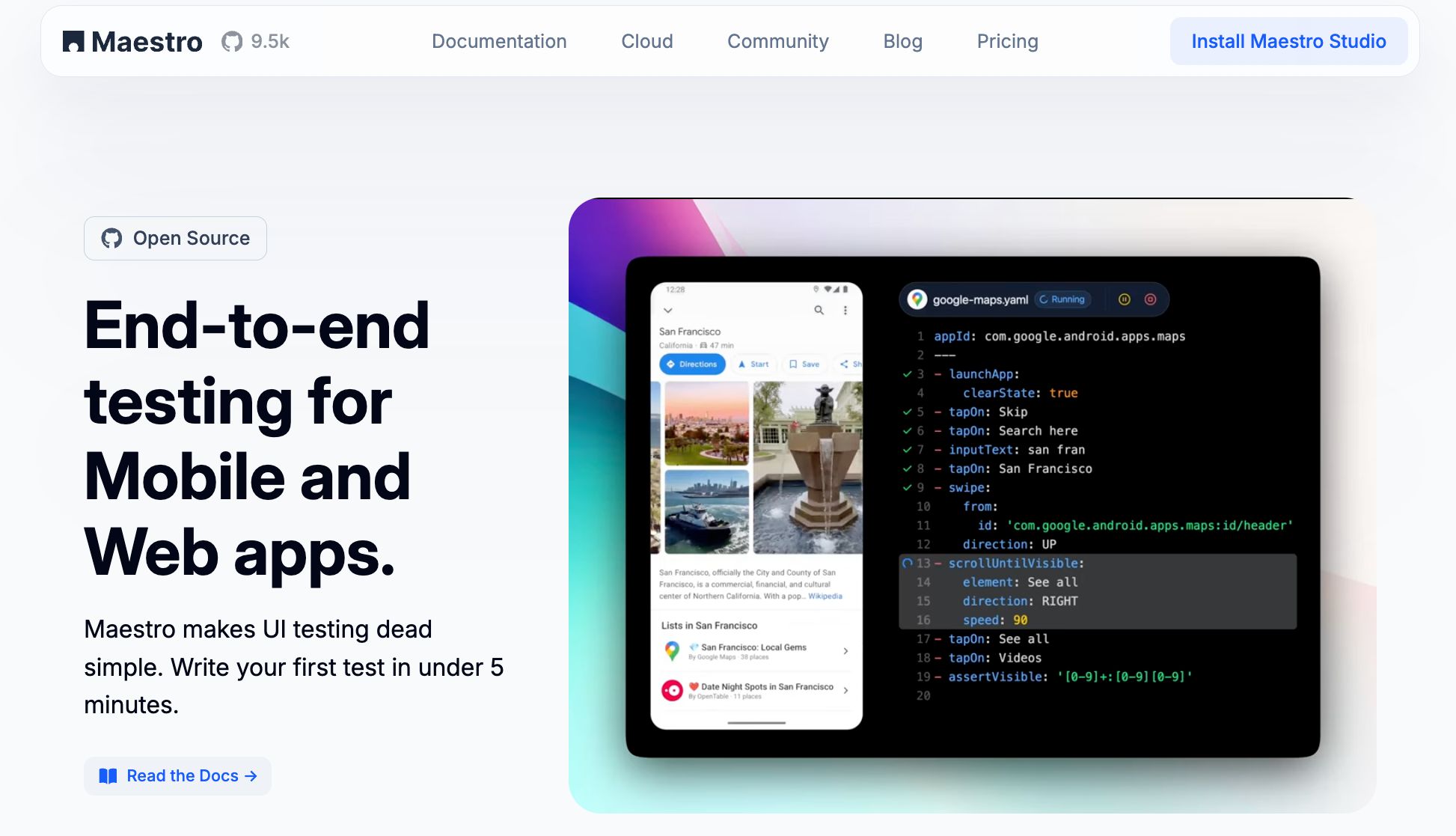
The best practices we've discussed can go a long way in solving many CLI test reporting challenges. But pairing them with the right testing platform makes things even more efficient. This is where Maestro steps in, simplifying CLI test reporting and addressing the common pain points teams encounter.
Consistent Results with YAML-Based Flows
Maestro uses a declarative YAML syntax to ensure test definitions are clear and consistent across platforms and environments. With its standardized format, Maestro's Flows are easy to understand and maintain, no matter who’s working on them.
Take, for example, an Android contacts flow:
yaml
appId: com.android.contacts
---
- launchApp
- tapOn: "Create new contact"
- tapOn: "First Name"
- inputText: "John"
- tapOn: "Save"
This same structure applies whether you're testing an iOS app or a web application. This uniformity helps minimize reporting errors and keeps things running smoothly across different platforms.
Built-In Protection Against Flaky Tests
Flaky tests are a common culprit behind unreliable CLI reports. Maestro tackles this issue head-on with built-in features that handle the unpredictable nature of mobile apps. For instance, it automatically waits for content to load, reducing failures caused by timing issues. By addressing these external factors, Maestro ensures your test results reflect your app's actual performance, not random glitches.
Unified Reporting Across Platforms
Using separate reporting systems for different platforms can lead to confusion and inconsistencies. Maestro solves this by acting as a single testing platform for both mobile and web applications [1][2]. It supports a variety of environments, delivering consistent reports across your entire application ecosystem. Whether you're testing a native Android app or a web interface, Maestro uses the same YAML structure to produce uniform reports, making it easier to compare results and maintain a clear overview of your app's quality.
Straightforward CLI Commands and Report Setup
Maestro's CLI is designed to be simple and intuitive, reducing the chances of errors during setup. As a single binary, it avoids dependency conflicts and complicated installation processes. Running tests is as easy as executing maestro test flow.yaml in the command line. Report generation follows the same simplicity, with clear output formats and detailed logs that make debugging faster and easier.
For teams that lean toward visual tools, Maestro Studio offers a user-friendly alternative. It generates precise test commands using visual element detection and action recording. Plus, with AI assistance, it helps create well-defined tests that lead to more dependable reports. As highlighted in the Maestro documentation:
"Maestro Studio empowers anyone - whether you're a developer, tester, or completely non-technical - to write Maestro tests, without sacrificing maintainability or reliability."
Additionally, Maestro integrates seamlessly into CI/CD pipelines, ensuring consistent test execution and reporting across workflows like pre-release, nightly builds, and pull requests. Its simple commands and clear logs contribute to a unified and reliable reporting process.
Maestro's CLI Reporting Options
Maestro supports multiple report formats through the CLI, making it easy to integrate with existing workflows. Using maestro test --format junit or --format html, teams can generate reports in JUnit XML or HTML formats that are compatible with most CI/CD platforms. The --output flag allows custom report file naming for better organization.
Conclusion and Key Takeaways
Summary of Common Issues and Solutions
CLI test reporting problems can be frustrating, but the good news is that most have straightforward fixes. Missing or incomplete reports and difficult-to-read logs often result from incorrect output paths, misconfigured logger settings, or poor formatting standards. These can typically be resolved by double-checking CLI parameters and ensuring directory permissions are set correctly. Inconsistent or duplicate results usually tie back to environment or timing mismatches, while poor integration with reporting dashboards might call for updating CLI tools or ensuring compatibility with your testing framework. If you're facing slow report generation, consider optimizing execution strategies or using parallel processing to speed things up.
The key is identifying the root cause - whether it's a configuration issue, an environment inconsistency, or a framework limitation - and applying the right solution. Regularly maintaining your CLI tools and dependencies can also prevent many of these headaches. Tackling these issues head-on helps create a reporting system that’s not only efficient but also standardized, making test outputs easier to manage.
The Value of Reliable Reporting Tools
A solid reporting platform doesn’t just fix these common issues - it also improves the overall reliability of your testing process. A dependable testing tool ensures smoother CLI reporting, and that's where Maestro shines. By addressing core challenges like flaky tests and delays, Maestro eliminates the need for manual sleep() calls and reduces false positives. Its intuitive YAML syntax ensures consistent and unified reporting across platforms.
Cloud provides real-time reporting with metrics such as flow counts, pass/fail rates, and average run times, giving teams insights to monitor performance trends and catch issues early. This level of real-time reporting gives teams the insights they need to monitor performance trends and catch issues early.
Maestro’s ease of use is another standout feature. Its single binary setup and simple maestro test flow.yaml command structure significantly reduce configuration errors. Plus, its cross-platform support ensures consistent results whether you’re working with React Native, iOS, or web applications. For teams looking to improve their CLI test reporting, investing in a tool like Maestro can save time, simplify debugging, and boost confidence in your test outcomes.
FAQs
How can I ensure consistent CLI test reporting across different environments?
To ensure consistent CLI test reporting across different environments, begin by standardizing your test configurations and environment setups. Use a uniform format, like YAML files, to make test flows clear and repeatable.
Leverage Maestro's built-in tolerance for flakiness and delays to manage unexpected variations across environments. Automating environment provisioning and test execution within your CI/CD pipelines adds another layer of reliability to the process. Regularly monitoring and rerunning tests during development also helps catch and resolve discrepancies early, boosting the overall stability of your testing framework.
How can teams seamlessly integrate CLI test reporting into their CI/CD pipelines to enhance efficiency?
Integrating CLI test reporting into your CI/CD pipeline can make your testing process smoother and more efficient. Automating test execution not only ensures consistent reporting but also speeds up feedback loops - both of which are crucial for maintaining high-quality applications.
Using Maestro, adding test automation to your CI/CD pipeline becomes a breeze. Its straightforward setup and declarative syntax simplify the process of defining and running tests. Plus, with Maestro's built-in resilience to flakiness and delays, you can trust the results even in unpredictable environments. This means your team can concentrate on rolling out features faster without sacrificing quality.
How can I fix and prevent flaky tests that cause inconsistent or duplicate results in CLI test reports?
Flaky tests can be addressed and avoided by leveraging Maestro's built-in tolerance for UI changes and delays. This functionality automatically adjusts for shifting element positions and varying content load times, helping to minimize false failures and inconsistencies during testing.
For even greater reliability, create well-defined and robust Flows using Maestro's simple YAML syntax. Instead of relying on manual delays like sleep(), take advantage of Maestro's automatic waiting feature, which ensures tests move forward only when the app is fully ready. Make it a habit to regularly review and update your test flows to keep up with app changes, ensuring they stay dependable and effective.
We're entering a new era of software development. Advancements in AI and tooling have unlocked unprecedented speed, shifting the bottleneck from development velocity to quality control. This is why we built — a modern testing platform that ensures your team can move quickly while maintaining a high standard of quality.
Learn more ->