
Dynamic UI testing can be frustrating. Elements move, network delays cause failures, and maintaining tests across platforms feels like a constant struggle. YAML-based testing simplifies this process by using easy-to-read, declarative syntax that anyone on your team can understand. It eliminates flaky tests, reduces setup complexity, and works seamlessly across Android, iOS, and web platforms.
Key Takeaways:
- Why YAML? It’s simple, readable, and focuses on what to test, not how to code it.
- Dynamic Elements: YAML frameworks handle shifting UI elements and network delays without manual intervention.
- Best Practices: Organize tests by features, use dynamic waits instead of fixed delays, and rely on stable selectors like resource IDs.
- CI Integration: YAML tests are easy to integrate into pipelines, with tagging for targeted runs and parallel execution for speed.
By following these principles, you can create reliable, maintainable tests that adapt to app changes without sacrificing clarity or speed.
Best Practices for Writing YAML-Based UI Tests
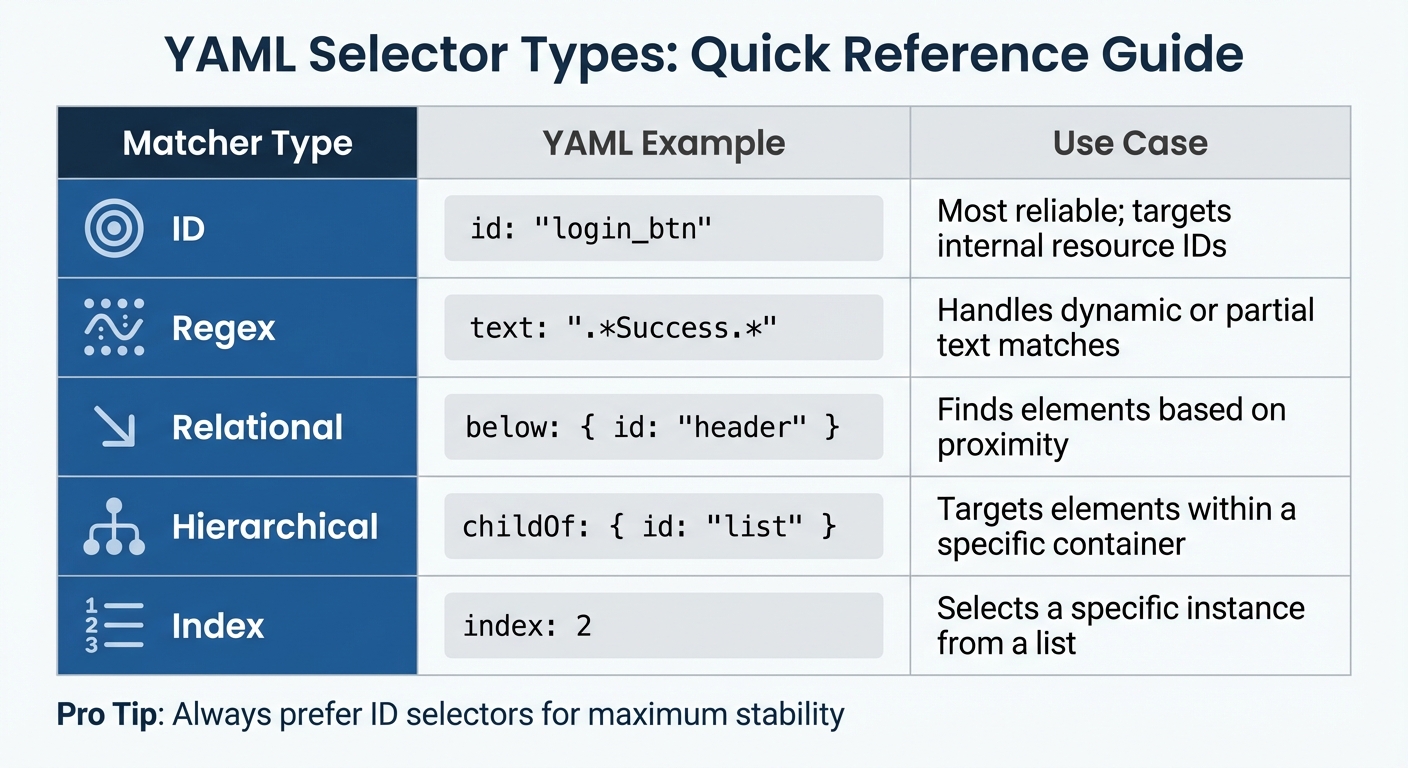
YAML Selector Types and Use Cases for Dynamic UI Testing
Creating YAML tests that are easy to maintain starts with proper organization. These practices help manage dynamic UI elements efficiently and keep your tests reliable.
Organizing Tests for Clarity and Maintenance
Stick to the single scenario rule: each YAML flow should focus on testing one user intent, like "Log in" or "Add item to cart." This makes debugging easier and allows parallel test execution, which is essential for maintaining CI speed. Avoid combining multiple scenarios into one flow, as it complicates maintenance and slows down test cycles.
Group your test files into feature-based directories. For example, create folders like /auth, /checkout, or /search to organize related tests. This structure makes it easier for your team to locate and update tests as features evolve. Within your YAML files, use tags (e.g., smokeTest or util) to control test execution in different environments. For instance, you might run smoke tests on every pull request but reserve the full suite for nightly runs.
Adopting the Page Object Model (POM) significantly improves maintainability. Instead of hardcoding element IDs in YAML flows, store them in external JavaScript files. For example, if a button ID changes from login_btn to loginButton, you only need to update it in one place. To streamline this process, create a centralized loadElements.yaml flow that initializes all element mappings. Other tests can then call this flow at the start, ensuring consistency.
A great example of this approach in action comes from a NASA app test. By using platform-specific mappings, they maintained a single YAML suite that worked seamlessly across both Android and iOS.
Once your tests are organized, focus on handling unpredictable UI behavior with dynamic waits.
Using Dynamic Waits Instead of Fixed Delays
Fixed delays, like sleep(5000), can make tests unreliable. They assume a set time is always enough, which isn't true given varying network speeds and device performance. Plus, they unnecessarily slow down your tests.
"Maestro knows that it might take time to load the content (i.e. over the network) and automatically waits for it (but no longer than required)".
Instead, use assertion-based waits. Commands like assertVisible ensure the test only proceeds when a specific element appears. This eliminates wasted time and makes tests more resilient to slower connections. For example, if a button takes longer to load, the test will wait dynamically and still pass.
To ensure accuracy, combine assertVisible with hierarchical selectors like below, childOf, or index. These help you target the correct instance of a dynamic element. For more complex scenarios, use the when condition in runFlow to check for element visibility (visible: {Element matcher}) before executing further commands. This is particularly helpful for conditional UI elements, such as promotional banners or error messages that only appear under specific conditions.
Writing Stable Selectors for Dynamic Elements
Once your tests are well-organized and dynamically timed, the next step is to ensure your selectors remain stable, even when the UI changes.
Resource IDs should always be your first choice. They are more reliable than text labels, which can change during design updates. For example, a button labeled "Submit" might later be renamed "Send", but an ID like submit_btn will stay consistent.
When resource IDs aren't available, use relational selectors to locate elements based on their position in the UI hierarchy. For instance, below: { id: "header" } targets an element beneath the header, even if there are multiple similar elements on the screen. You can also combine multiple attributes in a single matcher to increase precision, such as matching an element by id and ensuring it's a childOf a specific parent.
For dynamic content, regular expressions are your go-to tool. If you're testing a welcome message like "Welcome back, Sarah" or "Welcome back, John", use text: "Welcome back, .*" instead of hardcoding a specific name. This approach also works for dates, prices, or other variable content. Just remember to escape special characters like dollar signs (\$150) to avoid parsing errors.
To handle truly dynamic data, use environment variables. Pass parameters like appId or API endpoints during test execution (e.g., -e APP_ID=com.example) and reference them in YAML files with ${APP_ID}. This method lets you reuse the same test suite across development, staging, and production environments without modifying the YAML files.
| Matcher Type | YAML Example | Use Case |
|---|---|---|
| ID | id: "login_btn" |
Most reliable; targets internal resource IDs |
| Regex | text: ".*Success.*" |
Handles dynamic or partial text matches |
| Relational | below: { id: "header" } |
Finds elements based on proximity |
| Hierarchical | childOf: { id: "list" } |
Targets elements within a specific container |
| Index | index: 2 |
Selects a specific instance from a list |
sbb-itb-e343f3a
Handling Common Dynamic UI Scenarios
This section dives into practical solutions for tackling unpredictable UI behaviors, building on concepts like stable selectors and dynamic waits.
Testing Element Visibility and State Changes
Modern apps often feature elements that load asynchronously or change state unexpectedly. Instead of relying on arbitrary wait times, use assertion-based commands to manage these scenarios. For instance, the assertVisible command ensures an element is present before proceeding with the test.
When dealing with elements that require more time to load, the extendedWaitUntil command can be used to extend stabilization time. Adding a label like "Waiting for product list to load" can make debugging more intuitive and human-readable.
For elements that appear sporadically, such as promotional banners, you can mark commands as optional: true. This ensures tests continue even if such elements are absent, maintaining overall test stability.
Managing Conditional Rendering and Animations
Some UI components, like error messages, permission dialogs, or feature flags, appear only under specific conditions. To handle these, the runFlow command with a when clause can be highly effective. For example, a condition like when: visible: "Allow Notifications" triggers the permission flow only if the dialog is present.
"By design, Maestro discourages the usage of conditional statements unless absolutely necessary as they could easily ramp up the complexity of your tests." – Maestro Documentation
Keep conditional logic simple. When working with multiple conditions, remember they function as "AND" statements, meaning all conditions must be true for execution. For straightforward cases, using inline commands with runFlow instead of creating separate files helps keep your test suite manageable.
Animations can also create timing issues when interacting with moving elements. To address this, Maestro provides a waitForAnimationToEnd argument, ensuring the UI is stable before proceeding. This prevents flaky failures caused by interacting with elements like buttons or cards while they’re still transitioning.
Validating User Flows Across Platforms
Testing a single user flow across Android, iOS, and web can be tricky due to platform-specific differences. However, you can avoid duplicating your test suite by leveraging environment variables for app identifiers, such as appId: ${APP_ID}. This approach allows you to run the same YAML file across platforms by simply supplying different values at runtime.
Ashish Kharche showcased this method by using runScript to manage platform-specific element IDs, enabling comprehensive coverage without duplicating logic.
For platform-specific features - like iOS share sheets or Android system drawers - you can use the platform condition (e.g., when: { platform: iOS }) to handle them selectively. Additionally, abstracting selectors through an output object in JavaScript (e.g., output.wallpapers.item) allows you to reference them in YAML as ${output.wallpapers.item}. This keeps your main test logic consistent while dynamically adjusting the underlying IDs for each platform.
Integrating YAML-Based Tests into CI/CD Pipelines
Integrating YAML-based tests into your CI pipeline ensures issues are flagged early. Building on earlier principles for creating stable YAML tests, this step streamlines feedback and enhances the development process.
Setting Up Tests for Continuous Integration
To optimize CI performance, apply modular design and tagging strategies. Organize test files into feature-specific subdirectories like /auth, /search, and /checkout. At the root, use a config.yaml file to define inclusion patterns (e.g., ** to capture all subdirectories) and manage execution order. This structure allows your CI pipeline to locate and execute tests with a single command, such as maestro test <folder_name>/.
Flow tagging is key for targeted testing at different CI stages. Assign tags like smokeTest to essential flows that validate core functionality. For instance, in a GitHub Actions workflow, the include-tags parameter can run only these critical tests during pull requests. This ensures developers get feedback in minutes, while the full regression suite runs during nightly builds.
To integrate with GitHub Actions, use the mobile-dev-inc/action-maestro-cloud@v1 action. With a MAESTRO_CLOUD_API_KEY secret and the compiled .app or .apk file, you can specify include-tags: smokeTest to focus on vital flows. This ensures core functionality is intact before merging code.
For detailed test results, generate JUnit XML reports using the --format junit parameter. These reports integrate seamlessly with most CI dashboards, providing clear insights into pass/fail status, execution time, and failure details.
| Feature | CI/CD Benefit | Implementation |
|---|---|---|
| Flow Tags | Faster feedback on PRs | include-tags: smokeTest |
| JUnit Reports | Native CI integration | --format junit |
| Env Variables | Multi-environment support | -e APP_ID=com.example |
| Parallel Execution | Reduced total runtime | Break flows into smaller scenarios |
Using Maestro for Scalable Testing
Once your tests are ready for CI, leverage cloud execution for scalability. As test suites grow, local CI runners can become a bottleneck. Maestro Cloud helps by offloading execution to enterprise-grade infrastructure with managed devices, enabling parallel test execution. This approach significantly reduces runtime compared to sequential testing.
"The cloud environment optimises for reliability and repeatability, on the belief that slower correct results beat faster inconsistent results, every time".
Each test runs on a freshly wiped device, ensuring no cross-contamination between tests. While this adds slight overhead, it eliminates flaky failures caused by residual data or state conflicts.
Maestro's built-in tolerance for flakiness and delays is particularly useful in CI environments where network conditions and device states can vary. By automatically waiting for elements to load, it avoids the need for manual sleep() commands, keeping tests efficient and stable.
"Maestro embraces the instability of mobile applications and devices and tries to counter it with built-in tolerance to flakiness".
For larger test suites, the --analyze flag offers AI-driven insights into UI issues, spelling errors, and internationalization problems. These insights, based on test logs and screenshots, speed up the feedback process.
Conclusion and Key Takeaways
Why YAML Testing Stands Out
YAML-based testing takes the headache out of dynamic UI testing by simplifying the process. Its declarative syntax makes test scripts easier to read and maintain. When your app's element IDs or layouts change, you don’t have to dive into complex code - just tweak the YAML commands.
Another big win? It reduces flaky tests. By automatically handling waits and removing the need for hardcoded sleep() calls, YAML testing tackles common issues like network delays. As the Maestro documentation explains:
"Maestro embraces the instability of mobile applications and devices and tries to counter it".
On top of that, YAML testing ensures consistency across platforms. You can use one test suite to manage platform-specific differences without creating maintenance nightmares.
These benefits create an opportunity to rethink how tests are built and managed.
How to Start Using YAML-Based Tests
To make the most of YAML testing, focus on creating modular and maintainable test flows.
Break your test scenarios into smaller flows that target specific user actions, like logging in or completing a purchase. Group these flows into directories based on features - such as /auth, /checkout, or /search - to keep things organized and ready for parallel execution. This setup also makes it easier to adapt tests as your app evolves.
Flag critical flows (like smokeTest) early to ensure your most important tests run during pull requests. Save the more extensive regression tests for nightly builds. As Leland Takamine, Co-founder at mobile.dev, points out:
"A Flow should test a single user scenario".
This modular strategy minimizes cascading failures and speeds up feedback for developers. Plus, with Maestro’s interpreted execution model, you can update selectors and rerun tests on the fly - no need for time-consuming compilations. For teams scaling up, Maestro Cloud offers enterprise-grade parallel test execution, cutting down test run times significantly.