
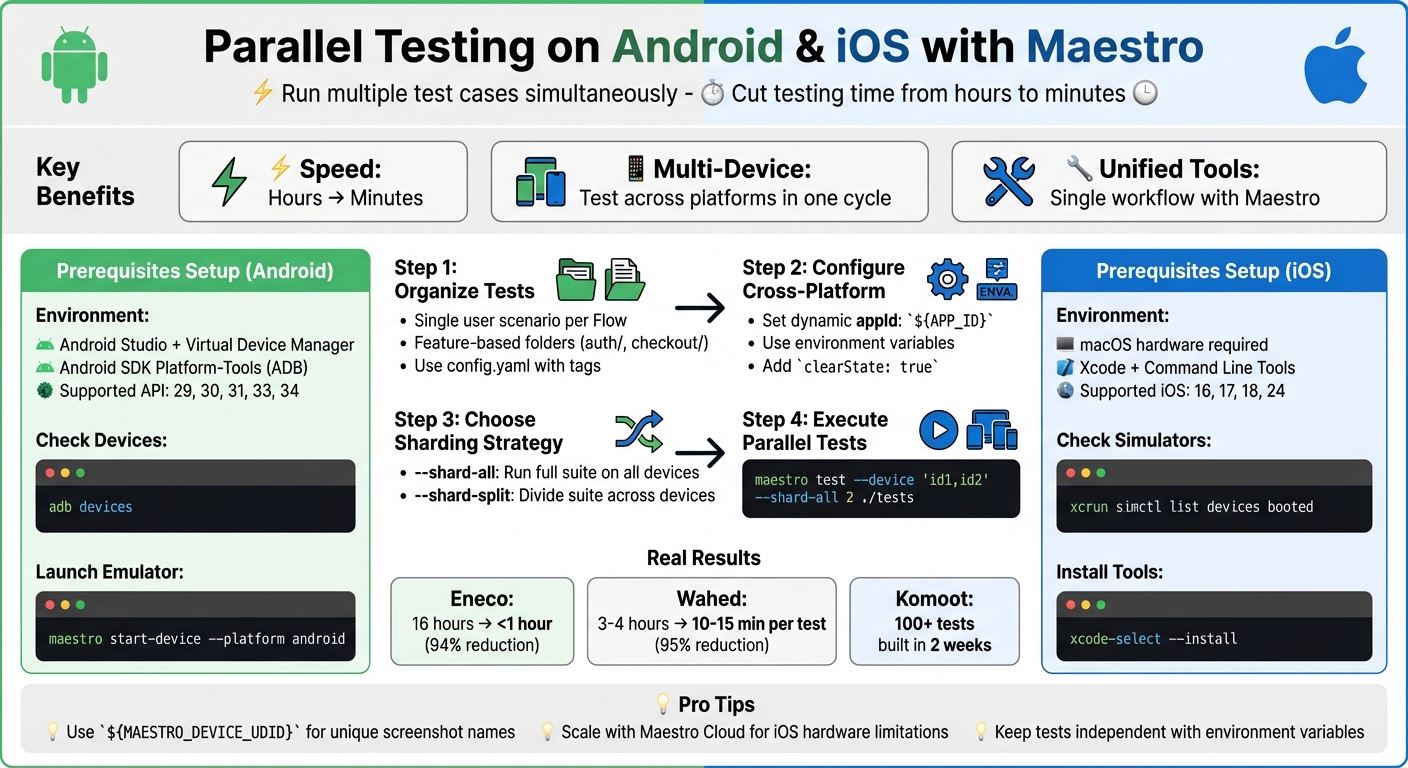
Parallel testing allows you to run multiple test cases simultaneously on different devices and platforms, significantly reducing testing time. For example, you can test an Android app on a Pixel 7 and an iOS app on an iPhone 14 at the same time. This speeds up development cycles and ensures faster feedback for developers.
Key Benefits:
- Cuts testing time from hours to minutes.
- Enables testing across multiple devices and platforms in one cycle.
- Simplifies workflows with unified tools like Maestro.
How It Works with Maestro:
- Use Maestro's CLI and YAML-based syntax for both Android and iOS.
- Employ sharding strategies like
--shard-splitto distribute tests across devices. - Manage devices locally or scale testing with Maestro Cloud for larger setups.
Setup Essentials:
- Prepare your environment with tools like Android Studio or Xcode.
- Organize test cases into focused, modular flows.
- Use environment variables to streamline cross-platform testing.
Maestro Parallel Testing Setup Guide for Android and iOS
Prerequisites for Parallel Test Execution
Before diving into parallel test execution, it's essential to prepare your environment and organize your test suite. While the setup varies slightly between Android and iOS, Maestro's unified approach simplifies the process. Here's what you need to get started.
Environment Setup
The Maestro CLI serves as the backbone for orchestration and parallel execution, while Maestro Studio is your go-to tool for local authoring and debugging.
For Android, ensure you have the latest version of Android Studio with Virtual Device Manager installed, along with Android SDK Platform-Tools (especially ADB). Maestro supports Android API levels 29, 30, 31, 33, and 34, with plans to include API 35 and 36 by early 2026.
On the iOS side, you’ll need macOS hardware to run local simulators. Install Xcode from the Mac App Store, then execute xcode-select --install to add Command Line Tools. Maestro is compatible with iOS Runtimes 16, 17, 18, and 24. If you're working on Windows or Linux, Android testing will be your only option.
For local parallel testing, make sure your machine has sufficient CPU and RAM to handle multiple virtual devices running simultaneously.
Once your environment is ready, focus on structuring your test suite for optimal parallel execution.
Test Case Organization and Project Structure
How you organize your test suite can make or break the efficiency of parallel execution. Each Flow should represent a single user scenario, such as "Log in" or "Complete checkout", rather than combining multiple actions into one sequence. Keeping Flows focused and concise minimizes the risk of a single failure disrupting the entire test run.
To maintain clarity, organize your Flow files into feature-based folders like auth/, checkout/, or search/. Use a config.yaml file to manage which Flows are executed, leveraging file globs and tags for flexibility. For cross-platform testing, inject environment variables (e.g., appId: ${APP_ID}) into your Flow files to adapt the same test suite for Android and iOS.
Reusable utility Flows can be stored in a common/ directory and tagged (e.g., [util]) to exclude them from standalone execution. When running sharded tests, use variables like ${MAESTRO_SHARD_INDEX} and ${MAESTRO_DEVICE_UDID} in screenshot filenames to avoid overwriting artifacts.
With your test suite organized, the next step is setting up device access.
Device Access Options
You can access devices either locally or through Maestro Cloud. For local testing, launch Android emulators or iOS simulators using the maestro start-device command. You can also connect physical Android devices via ADB, ensuring USB Debugging is enabled in Developer Options. Use adb devices to list available Android devices or xcrun simctl list devices booted for iOS simulators, and specify hardware with the --device flag.
Scaling local iOS tests can be tricky due to macOS hardware limitations and resource constraints. This is where Maestro Cloud shines, offering a managed fleet of virtual devices with automatic scaling and infrastructure teardown. It's especially useful for large-scale regression testing, where local hardware might not suffice.
These steps lay the groundwork for configuring parallel tests with the Maestro CLI.
sbb-itb-e343f3a
Setting Up Parallel Testing with Maestro
Once your environment is ready and your test suite is organized, you can dive into configuring parallel execution. Maestro CLI offers two sharding strategies to optimize your testing process:
--shard-all: This runs your entire test suite across all devices simultaneously, making it perfect for cross-platform validation.--shard-split: This divides your suite into smaller chunks that are distributed across devices, cutting down overall execution time.
Configuring Parallel Tests for Android
To get started with Android, first list your connected devices using:
adb devices
If you need to launch a new emulator, use:
maestro start-device --platform android
Next, set your appId dynamically using an environment variable during runtime. For example, in your Flow file, specify:
appId: ${APP_ID}
Then, execute the test with:
maestro test -e APP_ID=com.example.android flow.yaml
For consistent and reproducible results, include clearState: true in your launchApp command. This ensures that each test starts with a clean slate.
When taking screenshots during parallel runs, avoid file overwrites by using environment variables like ${MAESTRO_SHARD_INDEX} or ${MAESTRO_DEVICE_UDID} in your filenames. For instance:
takeScreenshot: "screen-${MAESTRO_DEVICE_UDID}.png"
This approach ensures unique filenames for each device or shard.
Now, let’s move on to configuring iOS tests with similar steps.
Configuring Parallel Tests for iOS
For iOS, start by listing all booted simulators with:
xcrun simctl list devices booted
Additionally, ensure that Xcode Command Line Tools are installed by running:
xcode-select --install
In May 2023, Ashish Kharche showcased cross-platform parallel testing using a NASA wallpaper app built with Jetpack Compose (Android) and SwiftUI (iOS). The setup used a single Maestro Flow file with appId: ${APP_ID} and platform-specific scripts. To trigger the test, run:
maestro test -e APP_ID=com.wallpapers.androidapp .maestro/wallpapers/ListDetailWallpaper.yaml
For handling platform-specific UI elements, you can use conditional logic within the same test suite. For example, leverage runScript or runFlow with a when: platform: iOS condition to address differences between Android and iOS.
With both Android and iOS devices configured, you’re ready to execute parallel tests.
Running Parallel Tests with Maestro CLI
To run tests across multiple devices simultaneously, use the --device flag with a comma-separated list of device identifiers. For instance, to test on both an Android emulator and an iOS simulator:
maestro test --device "emulator-5554,5B6D77EF-2AE9-47D0-9A62-70A1ABBC5FA2" --shard-all 2 ./tests
Make sure all required devices are booted before running this command. If the number of shards exceeds the available devices, Maestro will return an error. For an alternative approach to speed things up, try:
maestro test --device "id1,id2" --shard-split 2 ./tests
Eneco, for example, slashed their regression testing time from 16 hours to under 1 hour by using Maestro's parallel testing functionality. For teams looking to scale beyond local hardware, Maestro Cloud offers automated device management and supports large-scale parallelization without the need for manual infrastructure setup.
Best Practices for Parallel Testing
Once you’ve set up and configured your testing environment, follow these tips to make your parallel test execution as smooth and efficient as possible.
Reducing Test Dependencies
To ensure reliable parallel testing, every test must run independently. One way to achieve this is by adding clearState: true to your launchApp command. This clears out any leftover data from previous tests. Additionally, use environment variables like appId: ${APP_ID} instead of hardcoding values. This ensures flexibility and avoids conflicts. For example, you can pass the actual value at runtime with the following command:
maestro test -e APP_ID=com.example.app flow.yaml
This method allows you to run the same test suite on both Android and iOS without making changes to the tests themselves.
To keep your tests modular while accounting for platform-specific differences, use conditional logic within runFlow or runScript. This approach ensures that your tests remain adaptable without compromising their independence.
Handling Test Data Across Devices
When running tests on multiple devices at the same time, you might run into artifact conflicts. For instance, screenshots with identical names could overwrite each other. Avoid this by including built-in environment variables in your filenames, like so:
takeScreenshot: "screen-${MAESTRO_DEVICE_UDID}.png"
or
takeScreenshot: "screen-${MAESTRO_SHARD_INDEX}.png"
Another way to simplify test management is by breaking down large test suites into smaller, reusable subflows. For example, you can create separate flows for tasks like login or navigation. These subflows can then be combined using runFlow commands. Conditional logic can also help manage different application states, such as checking whether a user is already logged in before starting a test.
Once your test data handling is in good shape, you can focus on troubleshooting any execution issues.
Troubleshooting Parallel Test Failures
Running parallel tests locally, particularly on iOS devices, can sometimes lead to resource conflicts. For instance, you might encounter errors like java.io.IOException when multiple Maestro processes try to use the same temporary driver files. Similarly, fixed port conflicts can cause problems when an app starts on multiple simulators but only one is properly controlled.
If you request more shards than the number of connected devices, Maestro will return an error.
"Maestro Cloud automatically manages device allocation and parallelization. Sharding flags are primarily for local development and local CI runners."
If your local parallel tests remain flaky, consider switching to Maestro Cloud. The platform automatically handles device allocation, making it easier to scale parallel testing - especially for iOS, where local scaling is often limited by macOS hardware constraints. This can significantly improve stability for larger test runs.
Conclusion
Parallel testing with Maestro is simple and efficient: you can run tests on both Android and iOS simultaneously using unified YAML files and straightforward CLI commands. By leveraging environment variables and conditional logic, you can maintain a single, streamlined test suite for both platforms.
The results speak volumes. Eneco slashed their regression testing time from over 16 hours to under 1 hour. Wahed reduced the time it takes to create a test by 95%, going from 3–4 hours per test to just 10–15 minutes. Komoot, meanwhile, built a suite of more than 100 tests in just two weeks. These gains translate into smoother scaling and more reliable testing processes.
For local development, the --shard-split flag allows you to divide your test suite across multiple devices, speeding up feedback loops. When local hardware limitations become a bottleneck - especially for iOS - Maestro Cloud steps in, automatically managing device allocation and parallel execution while avoiding resource conflicts that can arise in local setups.
As you scale, maintaining test independence is key. Use clearState: true to start each test with a clean slate and unique identifiers like ${MAESTRO_DEVICE_UDID} to avoid conflicts with test artifacts. Breaking large suites into reusable subflows ensures your tests run smoothly, whether you're working with two devices or twenty.
Start with local parallel testing to gain momentum, then transition to Maestro Cloud for faster execution and improved reliability as your testing needs grow.