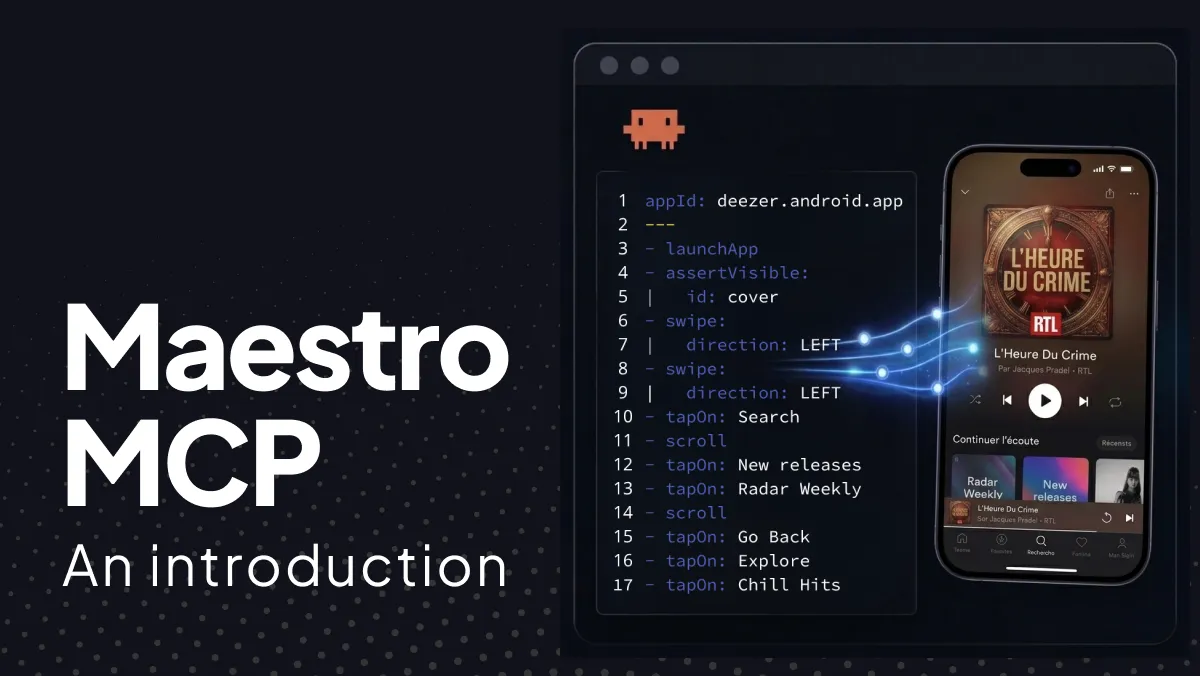
Large language models are strong at reading code and proposing UI tests, but they often stop short of operating a live app. You either hand them a static screenshot or test the app yourself and tell the agent what happened.
Maestro MCP makes that loop simple. Install the Maestro CLI, add one MCP server to your coding agent, boot an iOS simulator or Android emulator (or connect a physical Android device), and ask the agent to check the UI. Maestro implements the Model Context Protocol (MCP), so agents such as Claude Code, Cursor, Codex, Copilot, Gemini, Windsurf, JetBrains AI Assistant, and Grok Build can list devices, inspect the screen, run flows, take screenshots, open the Viewer, and optionally send work to Maestro Cloud.
Agents use Maestro tools (inspect_screen, run, screenshots, Viewer) and adapt when the UI changes. You mainly need a running target, MCP connected, and a clear ask about what to verify on screen. The same approach works on iOS, Android, React Native, Flutter, and web.
What you get
Maestro MCP ships with the Maestro CLI. Connect it in your agent and the tools below show up in the session. With the app running, you stay in one conversation: change code, then ask the agent to exercise the UI and report what happened. Common asks include confirming a feature still works (bookmarks, search, a primary CTA or any feature your app has), walking main tabs or Settings, and saving screenshots for a PR or for analyzing the UI. When something fails, the agent can inspect the screen, adjust, and try again. Use Maestro Viewer (below) when you want to watch the device while it works.
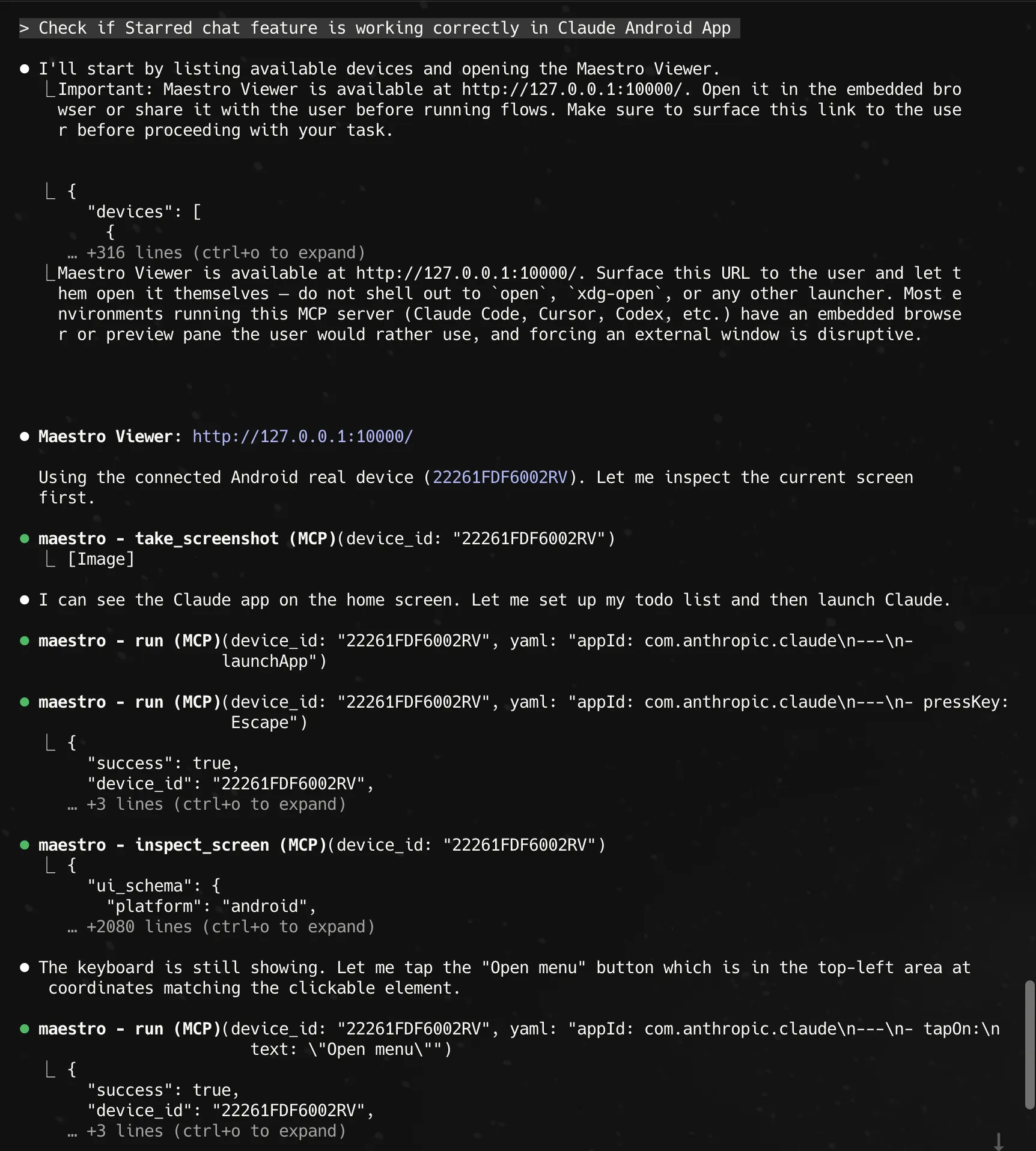
In the agent transcript you see MCP calls such as list devices, open Viewer, take_screenshot, run (launch and taps), and inspect_screen, all in one chat thread with the UI check at the top (here: Starred chat on the Claude Android app).
| Tool | Role |
|---|---|
list_devices | Devices and browsers available for automation |
inspect_screen | Current screen view hierarchy |
take_screenshot | Capture for PRs and reviews |
run | Execute a flow (inline YAML, files, or a folder) |
cheat_sheet | Maestro command and flow syntax reference for the agent |
open_maestro_viewer | Live device mirror and command stream |
list_cloud_devices | Valid Cloud device and OS pairs |
run_on_cloud | Submit a flow or folder to Maestro Cloud |
get_cloud_run_status | Poll a Cloud run until it finishes |
Maestro Viewer
Maestro Viewer shows the live device next to the agent and the Maestro steps it is running. You ask in natural language, the agent drives the app, and Viewer keeps the screen and command stream in one place so a human can follow along without leaving the IDE.
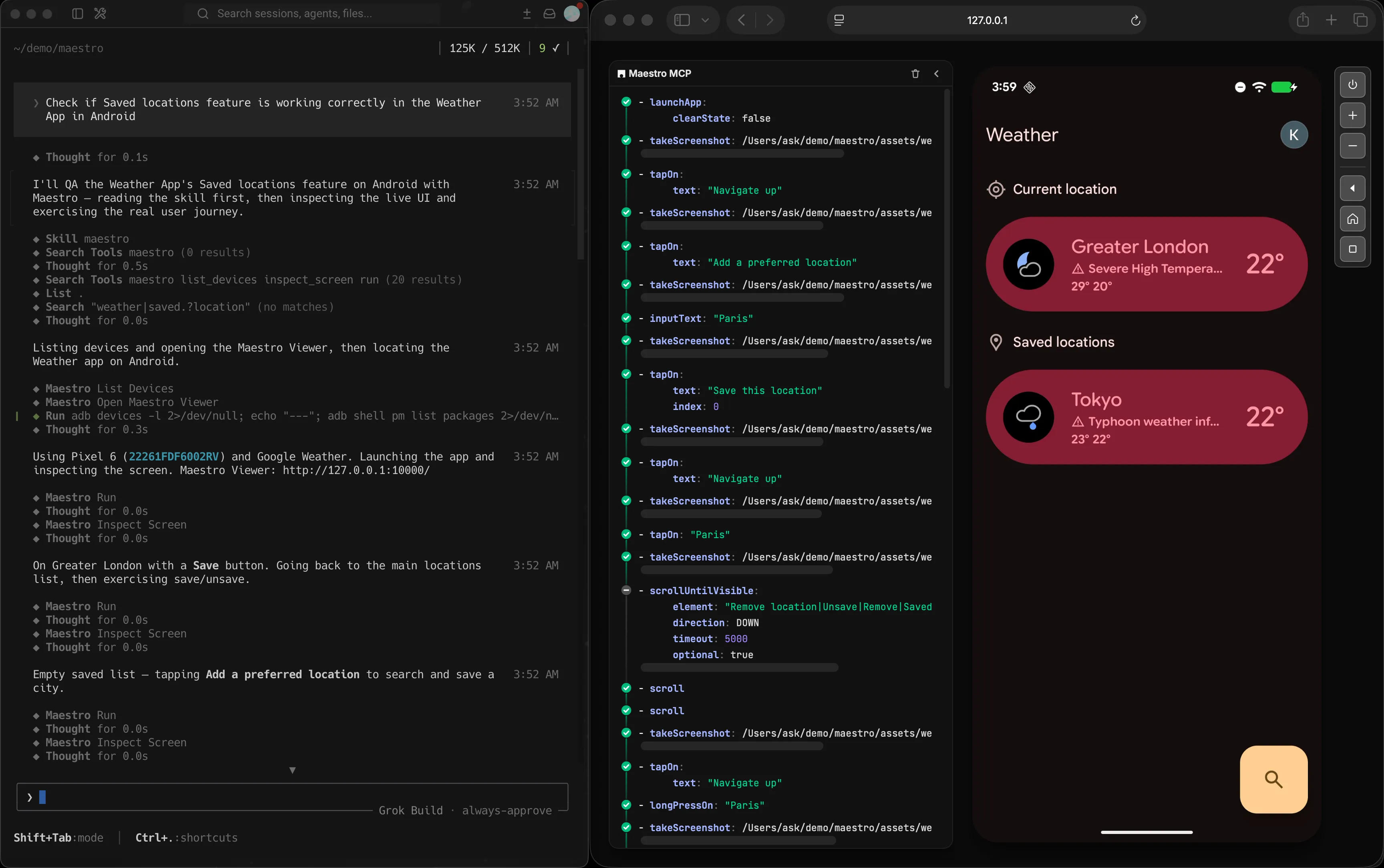
In this session the agent was asked to check Saved locations on Android Weather. It listed devices, opened Viewer, launched the app, navigated, added a preferred location (Paris), saved it, and captured screenshots along the way. The center panel is the Maestro command stream (launchApp, tapOn, inputText, takeScreenshot, scroll). The right panel is the running app as the agent left it: current location plus saved cities.
Ask the agent to open the maestro viewer when you want to watch the live device.
Getting started
- Install the Maestro CLI so
maestrois on yourPATH, then add MCP to your agent:
# Claude Code
claude mcp add maestro -- maestro mcp

# Codex
codex mcp add maestro -- maestro mcp

# Grok Build
grok mcp add maestro -- maestro mcp
For Cursor, Claude Desktop, Copilot, Gemini, and other agents, follow the Maestro MCP Server install steps on the Maestro MCP docs.
- Boot an iOS simulator or Android emulator, or connect a physical Android device. The agent confirms via
list_devices. - Install and launch your app.
- Ask in natural language, for example: Ensure bookmark functionality is working using Maestro. Or: I fixed the search results bug. Use Maestro to re-check search with a known query. The agent lists devices, inspects, taps, asserts, and screenshots as needed.
Takeaway
You gain a coding agent that can operate the running app, not only read the repo. UI checks happen in the same session as implementation, so feedback is fast and tied to real screens. Screenshots and Viewer give evidence you can share. One MCP setup works across agents and stacks, so teams spend less time on separate UI automation rituals and more time shipping with confidence.