Most agent sessions stop at code. You ask for a UI change, the model edits files, and then you still have to open the simulator yourself and judge whether the UI is right. Maestro MCP lets your coding agent check its own work on an iOS Simulator or Android emulator (or a connected physical Android device) before the conversation ends.
You describe the product outcome in natural language. The coding agent edits the app and installs a build. Maestro MCP is how that same agent opens the real screen, checks that the change is there, and reports back: list devices, navigate, inspect the view hierarchy, capture screenshots. Setup and the full tool list live in Maestro MCP for AI Coding Agents. For turning a proven path into a saved Flow, see Mobile UI Testing with Claude Code, Cursor and Codex.
This works with Claude Code, Cursor, Codex, GitHub Copilot, Gemini, Windsurf, JetBrains AI Assistant, Grok Build, and other agents that connect to Maestro MCP.
What the loop looks like
In one conversation the agent does two jobs: change the product, then prove it on a live binary.
A real session started with:
Remove water from the Log Meal bottom sheet and check with Maestro MCP to confirm it’s good and also take before/after screenshots of it.
Here is how the work split.
The coding agent changes the app
It searched the Log Meal / Capture Hub UI, found the primary Add a cup of water control and the hydration entry under More ways to log, then removed those controls and their wiring from the sheet.
It then built a Debug binary, installed it on the booted simulator, and launched the app.
Maestro MCP checks the live UI
With the new binary running, the agent uses Maestro MCP in the same chat to operate the app:
| Tool | What it did here |
|---|---|
list_devices | Selected the connected iOS Simulator |
run | Brought the app forward and opened the Log Meal sheet |
inspect_screen | Read the live view hierarchy after the change |
take_screenshot | Captured before and after for the session |
From that device result, the agent reports back: the change is on screen, related UI still looks right, or it needs another pass.
Before and after
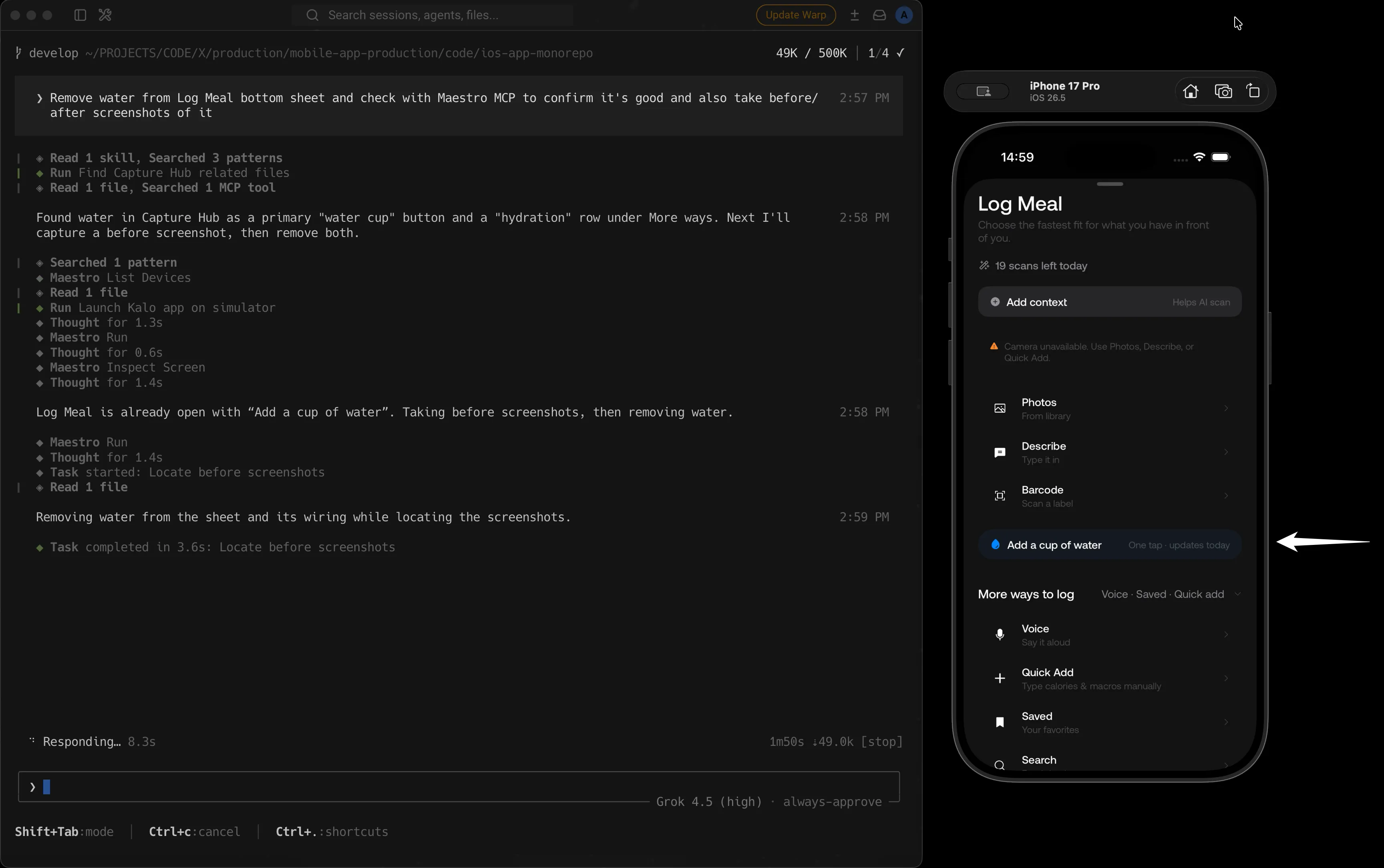
Before: Maestro has already listed devices, run steps, and inspected the screen. Log Meal still shows Add a cup of water (highlighted).
After: New build installed. Maestro opens Log Meal again. Water is gone; Photos, Describe, Barcode, and More ways to log remain. The transcript shows Maestro Run / Inspect Screen and a verified outcome.
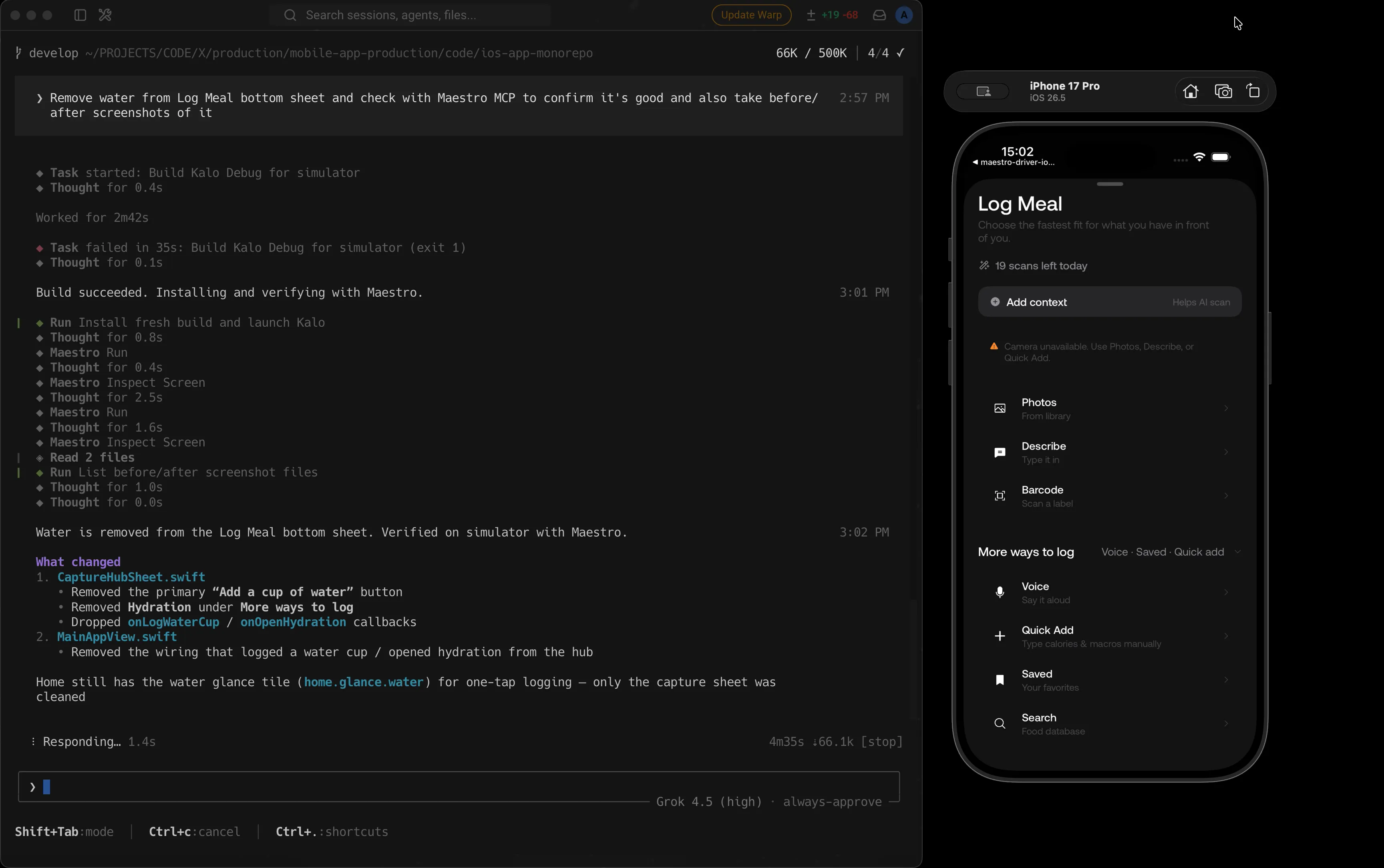
The same Maestro loop works for any UI change: implement, install, open the real screen, report from the device.
Other prompts
You already changed the code
I just changed [screen]. Use Maestro to confirm [behavior].
Something still looks wrong
That still looks wrong on device. Fix it, reinstall, and re-check with Maestro.
When the path is green
This loop is for while you are building. When you want the same journey again later, save the steps that worked as a Flow under .maestro/ and re-run it in chat or from the CLI (see Mobile UI Testing with Claude Code, Cursor and Codex):
maestro test .maestro/your-flow.yamlTakeaway
Your coding agent can implement a UI change and, through Maestro MCP, open the real screen on an iOS Simulator or Android emulator (or a connected physical Android device) and report whether the change is actually there. When something is off, fix and check again in the same session. When you want lasting coverage, save the green path as a Flow.