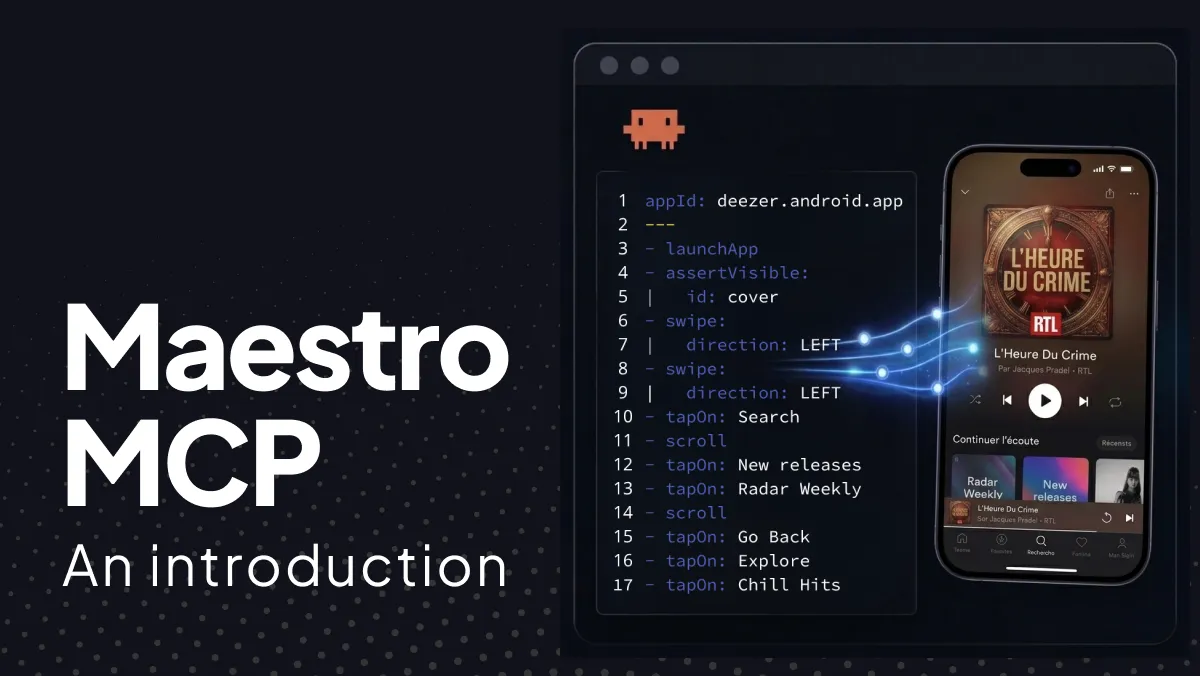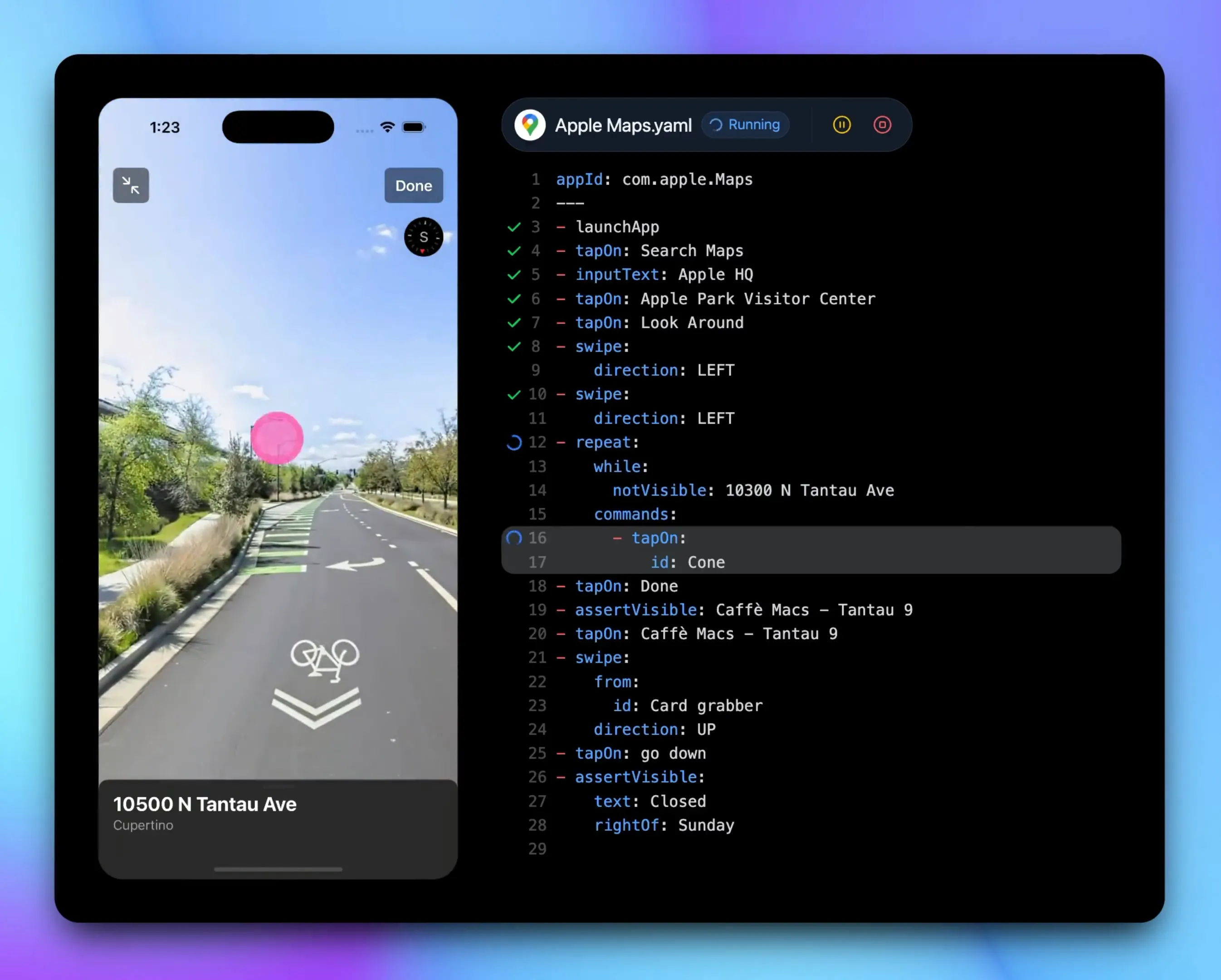
Your coding agent can write a UI test, run it against a live app on an iOS Simulator or Android emulator, and save it so the same test runs again next week. Maestro MCP connects Claude Code, Cursor, Codex and other agents to the device through the Model Context Protocol.
In chat the agent explores with inline YAML: open a screen, tap a control, assert what is on the device. When the journey works, save those steps as a Flow under .maestro/ in the repo. From then on the same file runs again through the agent or with maestro test, in CI included. If you want the wider picture first, what Maestro MCP gives your agent covers the tools it exposes.
Which agents, which devices
Claude Code, Cursor, Codex, Copilot, Gemini, Windsurf, JetBrains AI Assistant and Grok Build all speak MCP, so any of them can drive the run. On the device side: an Android emulator, a physical Android device over USB, or the iOS Simulator. The same Flow file works on all of them, and on web through Chromium.
How the agent runs it
The MCP run tool executes Flows. It accepts exactly one of 3 inputs per call:
yaml: inline YAML, preferred for exploration.files: specific.yamlFlow files from the repo. Same path every re-run.dir: a folder of Flows (optionalinclude_tags/exclude_tags). Useful once you have a small suite.
For this loop, the usual steps are:
- Look at the screen with
inspect_screen, then try steps withyamluntil the journey works. - Save those steps as a Flow file under
.maestro/at the repo root (Maestro’s default place for Flows). - Re-run that file later: through Maestro MCP in chat with
files, or outside the agent with the CLI.
maestro test .maestro/your-flow.yamlThat is the whole loop: explore, save, re-run. The saved Flow is a regression test that any agent, or the CLI, can run again on your machine or in CI.
Agentic UI testing in practice
The example below uses a settings app with an Appearance screen, where a user switches between light and dark themes. Swap in any screen or feature you care about.
Prompt
QA the Appearance screen with Maestro MCP.
The agent explores with yaml and uses inspect_screen as needed. Ask it to open the Maestro Viewer if you want to watch the live device and command stream.
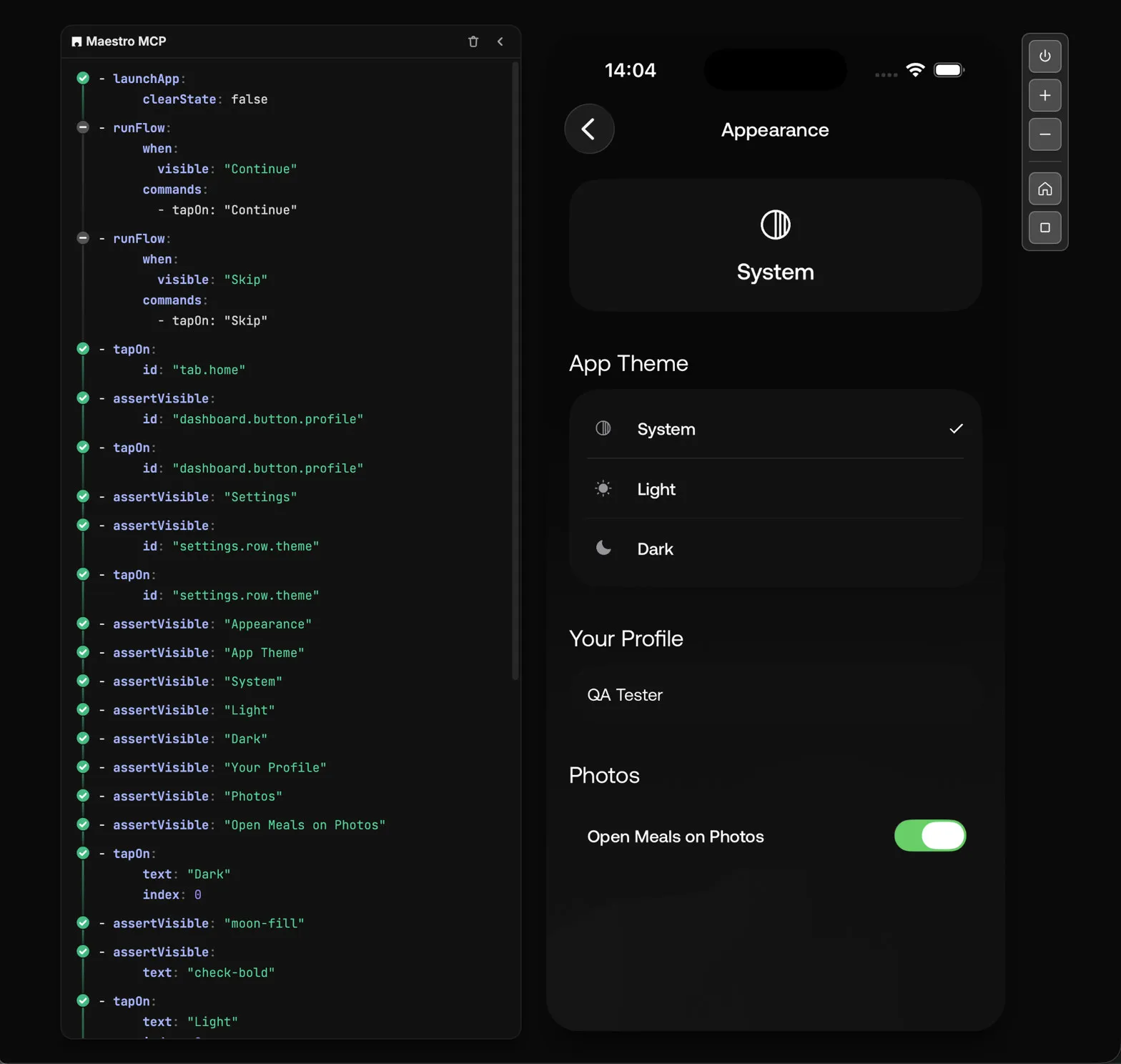
Prompt
Save the steps that worked as a Maestro Flow at
.maestro/appearance.yaml.
The agent writes the Flow file under .maestro/. The test lives in source control with the rest of the app.
Prompt
Re-run
.maestro/appearance.yamlwith Maestro MCP and tell me if it passed.
Maestro MCP runs the saved Flow. Use the same prompt after you change the UI: if the screen still matches the Flow, it passes; if labels or layout have moved, the run fails, and you can ask the agent to update the Flow. You can also re-run via the CLI:
maestro test .maestro/appearance.yaml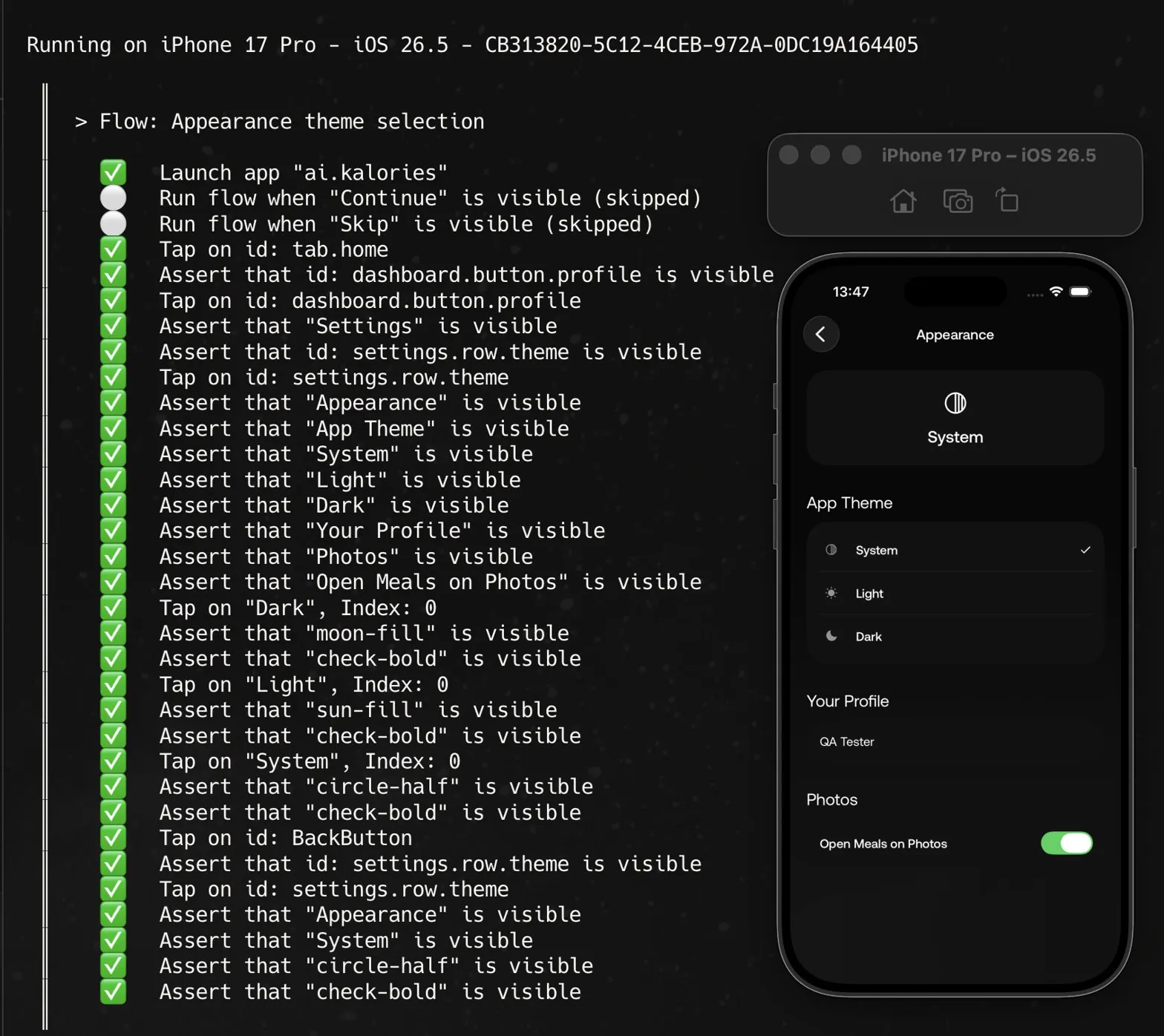
Try it
- Connect Maestro MCP and put your app on an iOS Simulator or Android emulator, or connect a physical Android device.
- Ask the agent to QA a screen or flow.
- Ask the agent to save the steps that worked as a Flow under
.maestro/at the repo root. Re-run it through Maestro MCP in chat, or from the terminal:
maestro test .maestro/your-flow.yamlTakeaway
Maestro MCP connects your AI coding agent to the live app. In one session the agent inspects the UI, proves a journey works, writes a Flow under .maestro/, and runs that Flow again in chat. You get fast exploration while the UI is still changing, and a repeatable end-to-end test when you want the same steps again.
The same Flow runs outside the agent with maestro test, including in CI. MCP and the CLI use the same YAML, so the steps you validated on the device are the steps you re-run later. For how this compares with a code-based suite, see Maestro vs Appium: The Benchmark.